Introduction
Connecting your Beats Studio Pro headphones to your iPhone can seem daunting, but it doesn’t have to be. Whether you’re a seasoned tech user or a beginner, understanding the right steps to pair these devices is crucial for an enhanced audio experience. This guide provides a simple approach to connecting and optimizing your device settings for the best performance.
Understanding Your Devices
Before establishing a connection, it helps to know the key features of your Beats Studio Pro headphones and your iPhone. Understanding these will facilitate a smoother setup process.
Overview of Beats Studio Pro Features
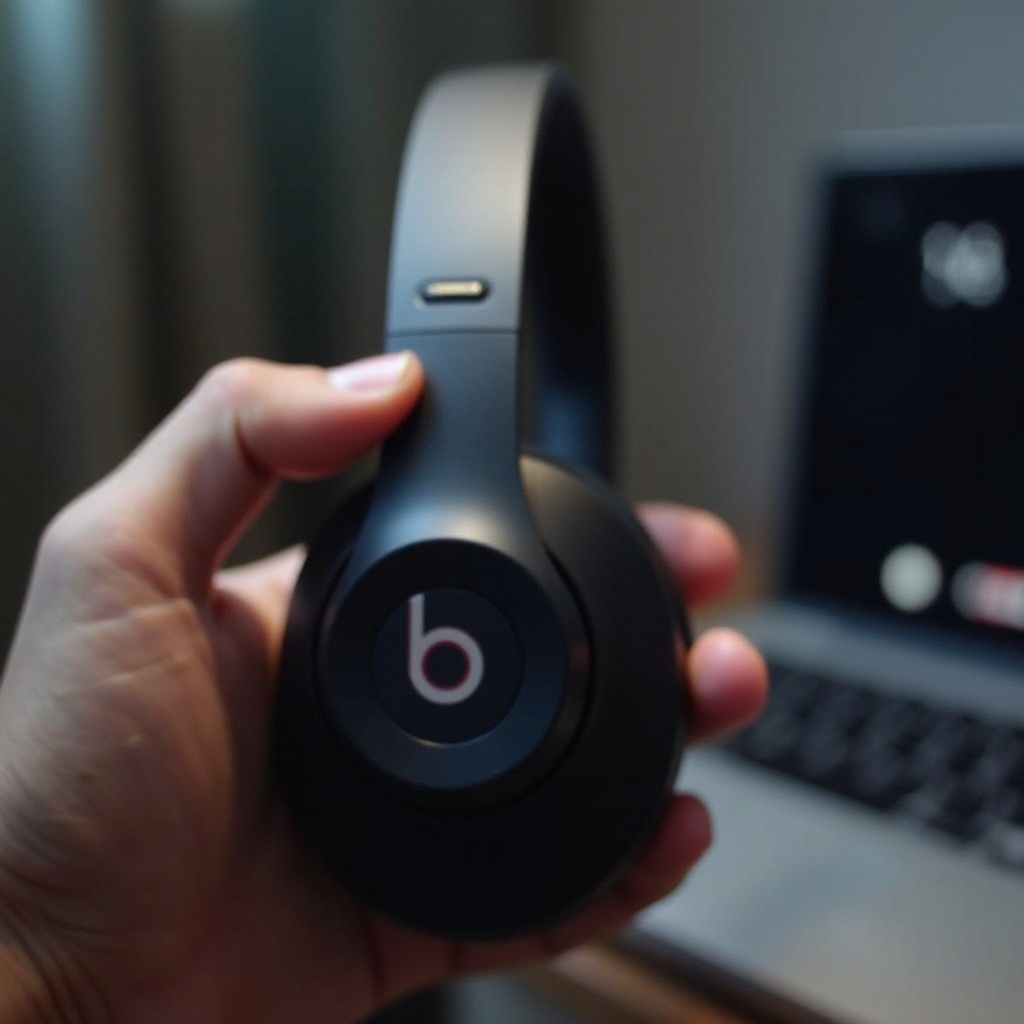
Beats Studio Pro headphones are renowned for their superior sound quality, featuring active noise cancellation, ergonomic design, and impressive battery longevity. These headphones are Bluetooth-enabled, allowing seamless wireless connectivity with your iPhone. Familiarize yourself with the controls on the headphones to easily manage volume and playback after pairing.
Key Compatibility Aspects of iPhone
Your iPhone supports a range of Bluetooth-enabled peripherals, including Beats Studio Pro. Most recent iPhone models, starting from the iPhone 7, include this functionality, making them compatible for a wireless connection. Ensuring your device’s iOS is updated can further enhance compatibility and performance.
Preparing for Connection
Proper preparation is essential to avoid common connectivity issues when pairing your Beats Studio Pro with your iPhone. Following a few preliminary steps can save time and prevent frustration.
Ensuring Both Devices are Charged
- Make sure both your iPhone and Beats Studio Pro are fully charged.
- Keeping devices adequately charged ensures a stable connection and uninterrupted use.
Checking for Necessary Software Updates
- Update your iPhone to the latest version of iOS.
- Use the Beats app to check for firmware updates for your headphones, ensuring your Beats are performing optimally.
Step-by-Step Bluetooth Pairing Process
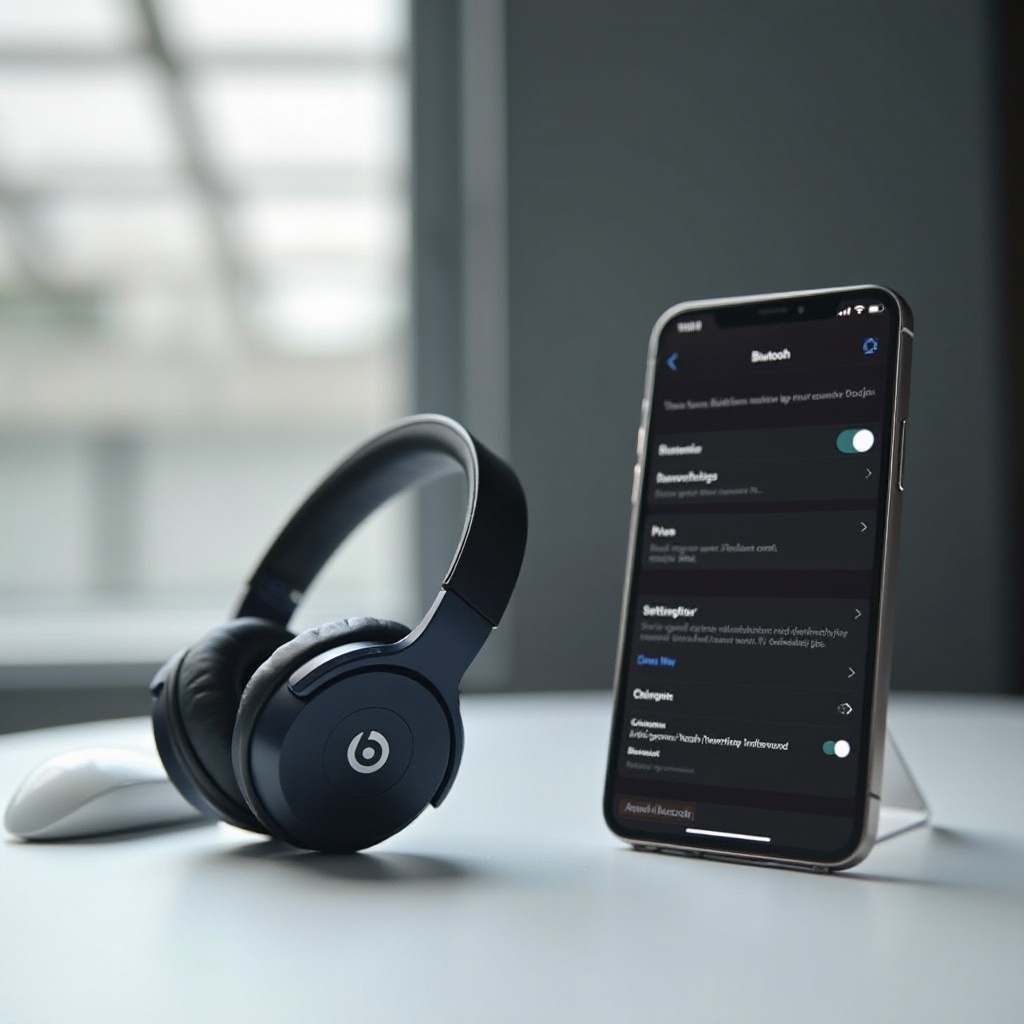
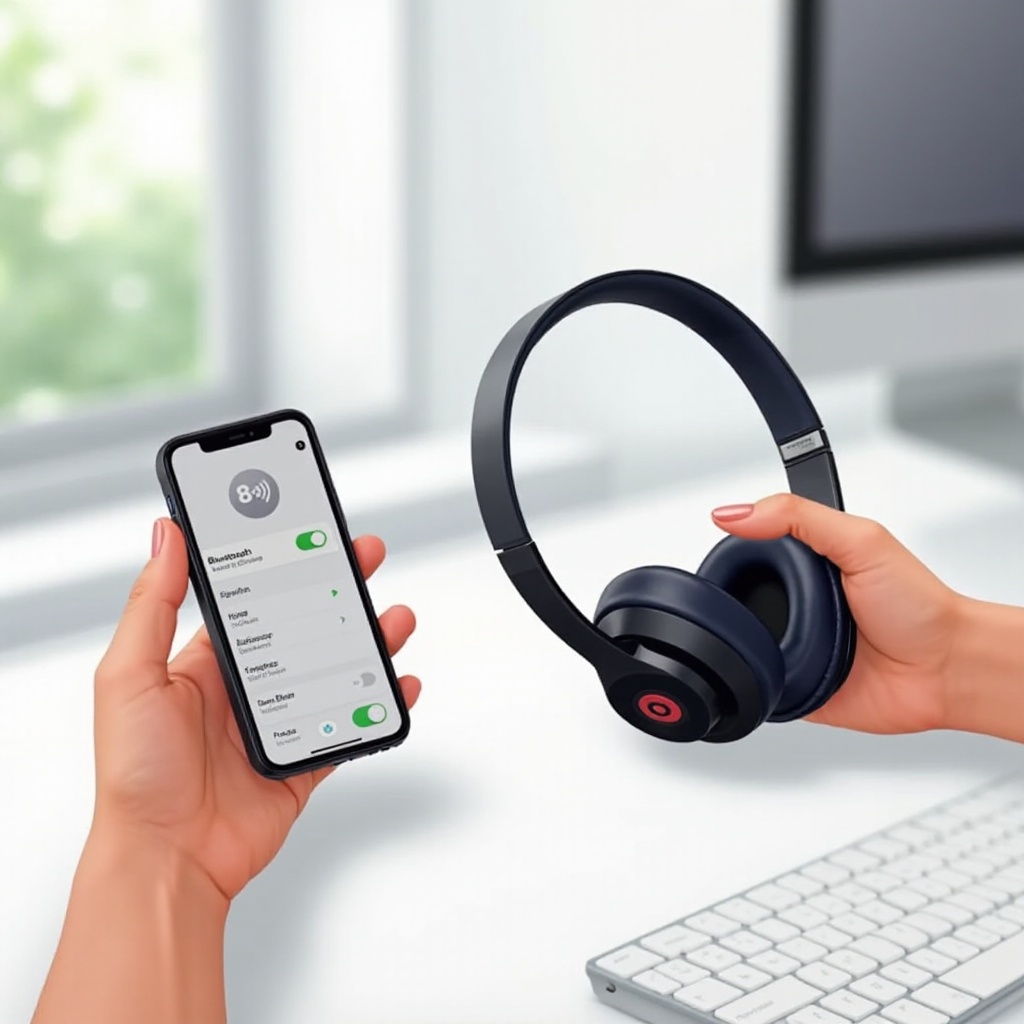
With both devices prepared, you are ready to establish a Bluetooth connection. Follow these steps to pair your Beats Studio Pro with your iPhone without hassle:
Enabling Bluetooth on iPhone
- Open the ‘Settings’ app on your iPhone.
- Navigate to ‘Bluetooth’ and toggle it on.
Putting Beats Studio Pro into Pairing Mode
- Press and hold the power button on your Beats headphones.
- Wait until the indicator light flashes, indicating it’s ready for pairing.
Connecting via iPhone Bluetooth Settings
- In the Bluetooth settings on your iPhone, look for ‘Beats Studio Pro’ in the list of available devices.
- Tap on it to initiate the pairing process.
- Confirm the connection by selecting ‘Pair’ if prompted.
Once connected, your Beats Studio Pro headphones should work seamlessly with your iPhone, providing the high-quality sound you expect.
Troubleshooting Common Connectivity Issues
If you encounter connectivity problems, don’t worry. These issues are usually easy to solve with a few troubleshooting steps.
Identifying Connection Problems
- Verify that both devices are within close range.
- Restart both your iPhone and Beats Studio Pro to refresh the connection.
- Ensure there are no physical barriers obstructing the Bluetooth signal.
Resetting Bluetooth Settings on iPhone
- In your iPhone’s ‘Settings,’ go to ‘Bluetooth.
- Tap the ‘i’ icon next to your Beats Studio Pro.
- Select ‘Forget This Device’ and confirm.
Re-attempt the pairing after resetting. This usually resolves persistent connectivity issues, allowing for a clean and fresh start.
Enhancing Your Audio Experience on iPhone
After connecting, make the most of your audio setup by exploring options that can enhance sound quality from your iPhone.
Adjusting Sound Settings for Optimal Quality
- Go to ‘Settings’ and select ‘Music’ on your iPhone.
- Activate ‘Sound Check’ to balance volume levels automatically across your library.
Utilizing the Beats App for Additional Features
- Download the Beats app to your iPhone for software updates and customization options.
- Adjust the sound profile to suit your preferences and access exclusive features available to Beats Studio Pro users.
These enhancements ensure your listening experience remains immersive and tailored to your preferences. With optimal settings, you can enjoy superior audio quality effortlessly.
Conclusion
Pairing your Beats Studio Pro headphones with your iPhone doesn’t need to be challenging. By following the steps outlined and utilizing troubleshooting tips when necessary, you can enjoy the exceptional sound quality these devices offer. With these connections established, you can fully experience wireless audio freedom.
Frequently Asked Questions
Why won’t my Beats Studio Pro connect to my iPhone?
Ensure Bluetooth is enabled and devices are close. Restart and reset Bluetooth settings if issues persist.
Can I connect my Beats Studio Pro to multiple devices?
Yes, but not at the same time. Disconnect from one to pair with another.
How do I update my Beats Studio Pro firmware?
Use the Beats app to check for and install firmware updates, ensuring optimal device performance.