Introduction
Replacing your Dell laptop battery can significantly boost your device’s performance and extend its lifespan. Whether your current battery is no longer efficient or you’re looking to upgrade, this guide provides you with the necessary steps to install a new battery comprehensively.
Understanding Dell Laptop Batteries
Before starting the installation, it’s crucial to familiarize yourself with the types of batteries that Dell laptops use. Lithium-ion batteries are prevalent due to their efficiency and long life. To avoid installation issues, confirm your laptop model and ensure compatibility with the new battery you’re purchasing.
Preparing for Battery Installation
Preparation ensures a seamless battery replacement process. Begin by gathering tools such as a screwdriver and a correctly matched battery for your Dell laptop. Organize your workspace to be clean and static-free. Safety precautions are essential: make sure all power sources are disconnected and peripherals removed.
Tools Required
- Screwdriver
- Soft, clean surface or table mat
- Compatible Dell laptop battery
Safety Precautions
- Ensure laptop is completely shut down and unplugged.
- Remove all connected accessories.
- Ground yourself to avert static shocks.
With preparation complete, transitioning to installation should be smooth.
Step-by-Step Installation Guide
Here’s a detailed breakdown of installing your new Dell laptop battery. Following these steps ensures proper integration and functionality.
Powering Down and Unplugging
- Fully shut down your Dell laptop.
- Detach the laptop’s power cable.
Removing the Existing Battery
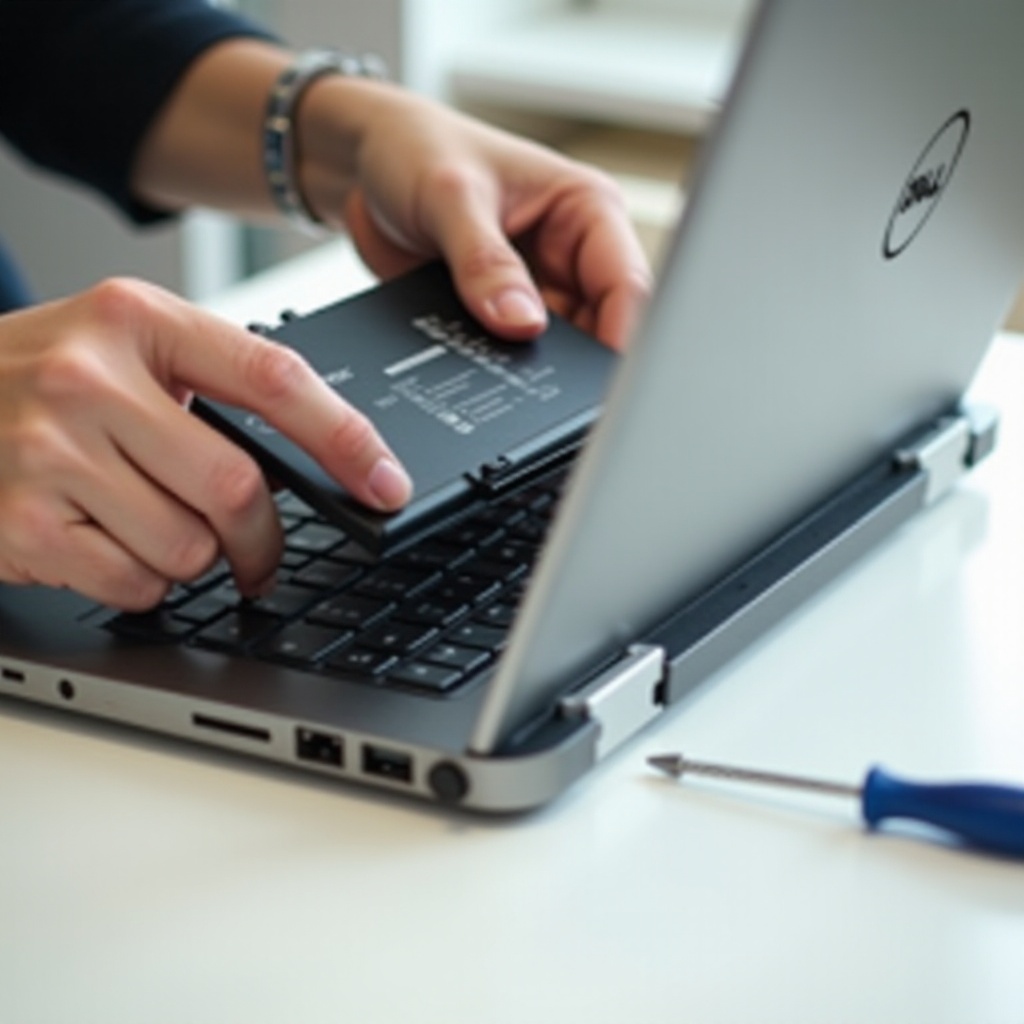
- Identify the battery compartment, typically located on the laptop’s underside.
- Unscrew and remove the cover securing the battery compartment.
- Carefully extract the old battery.
Installing the New Battery
- Position the new battery in the compartment, confirming alignment.
- Fasten the cover securely using the screws.
- Reattach the power cable to the laptop.
With the battery installed, verifying the installation’s success is the next step.
Post-Installation Verification
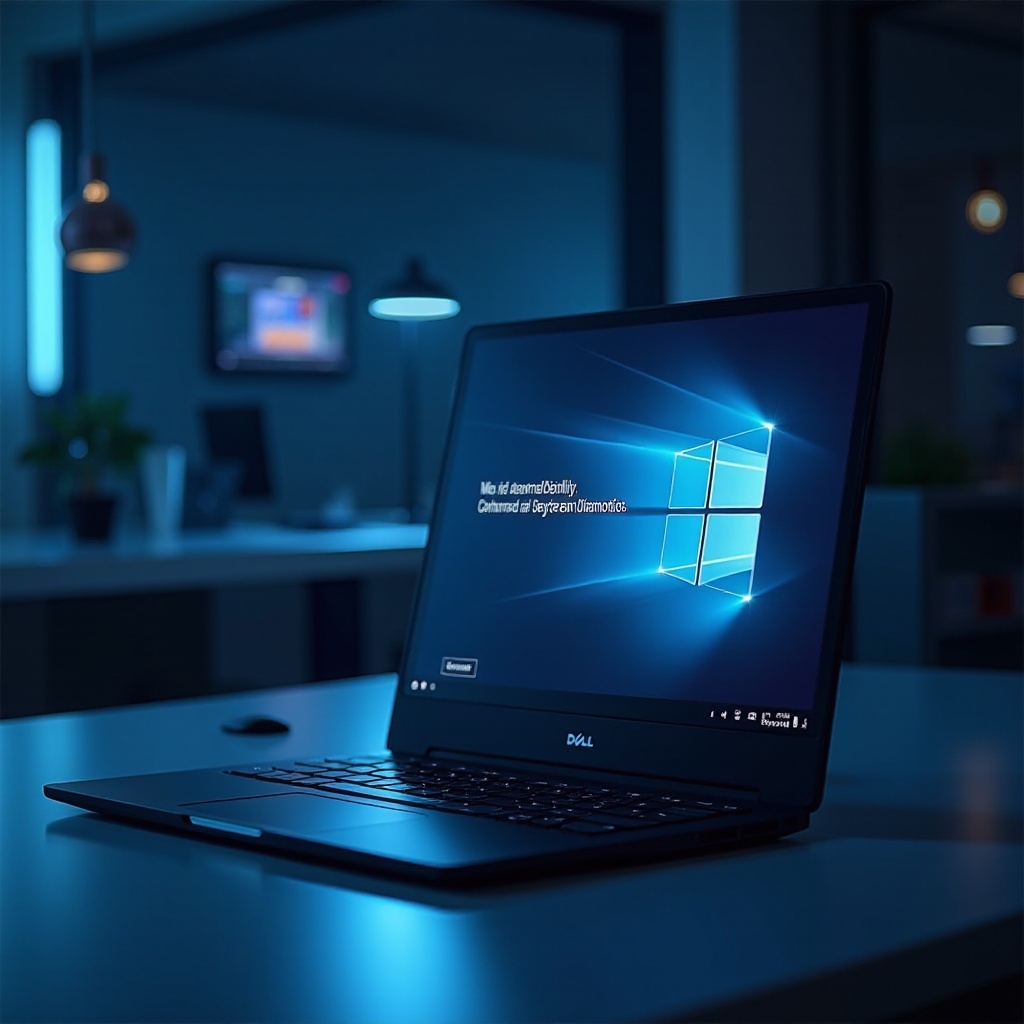
Once the new battery is in place, restart your laptop to check recognition within the system. Go to system settings or BIOS to verify the battery status and perform a test by running the laptop on battery power to check performance consistency. Troubleshooting will be necessary if any issues arise.
Checking Battery Recognition
Access your laptop’s system settings to ensure the battery is detected and shows accurate capacity levels.
Performing a Battery Test
Run your laptop solely on battery power to assess its charging retention and overall functionality.
If issues are detected during verification, resolving them is crucial.
Troubleshooting Common Issues
Even precise installation may sometimes lead to problems. Understanding and addressing these common issues ensures your new battery functions correctly.
Battery Not Detected
Should the battery be unrecognized, double-check its connections and alignment within the compartment. Rebooting your laptop might correct detection issues.
Error Messages and Calibration
If error messages appear, incorrect installation or compatibility might be the cause. Calibrating your battery by fully discharging and recharging may resolve such problems.
Having tackled troubleshooting, it’s essential to maintain your battery’s health.
Conclusion
Replacing your Dell laptop battery, while requiring attention to detail, is a worthwhile endeavor. Proper installation restores your device’s performance and ensures extended battery life. Routine checks and maintenance of your battery health are recommended for sustained efficiency.
Frequently Asked Questions
How can I ensure I am buying a genuine Dell battery?
Secure a genuine Dell battery by purchasing from authorized retailers or verified online marketplaces that specify authentic Dell parts.
What should I do if my laptop doesn’t recognize the new battery?
Inspect the battery installation and connections, reboot your laptop, and contact Dell support if the issue remains unresolved.
How often should I replace my Dell laptop battery?
Typically, a Dell laptop battery should be replaced every 2 to 3 years, but monitor its health regularly to determine when it needs replacing.