Introduction
iMessage is a vital communication tool for iPhone users, offering free and secure messaging over the internet. This guide will provide step-by-step instructions to establish and optimize your iMessage capabilities, ensuring you enjoy everything it offers—from sending media-rich messages to troubleshooting common issues.
What is iMessage?
Understanding iMessage starts with its fundamental difference from regular SMS—it uses data instead of cellular networks. This method allows users to send messages, photos, videos, and more without incurring additional charges, as long as you have an internet connection.
- Key Benefits of iMessage:
- Unlimited messaging when connected to Wi-Fi or cellular data
- Encrypted and secure communication
- Ability to send multimedia and enjoy advanced features
Once you grasp these benefits, you can proceed to set up iMessage on your iPhone.
Setting Up iMessage on Your iPhone
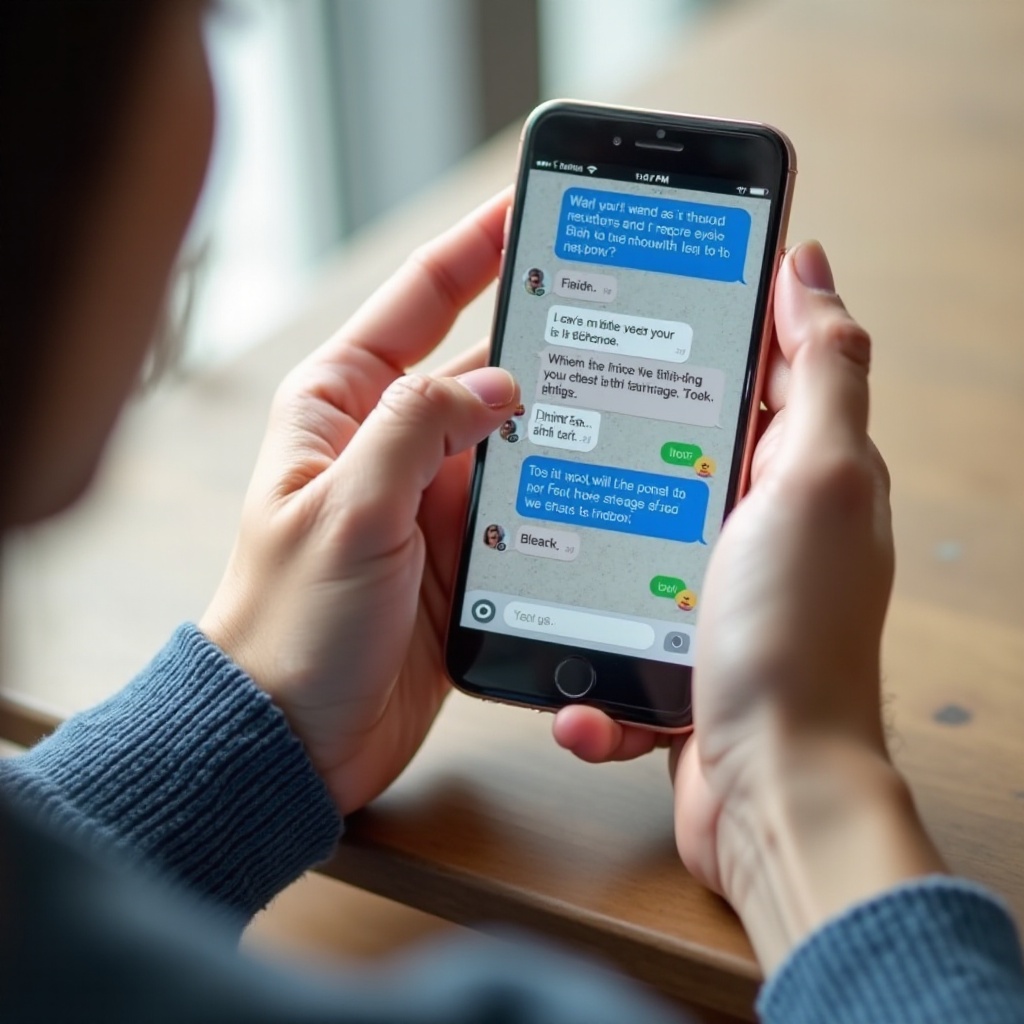
Activating iMessage is straightforward, designed to get you started quickly.
- Activating iMessage:
- Open ‘Settings’ on your iPhone.
- Scroll down to ‘Messages’.
-
Toggle the iMessage switch to ‘On’.
-
Checking Internet Connection:
Make sure your device is connected to Wi-Fi or cellular data, as this is essential for sending and receiving iMessages.
With iMessage activated, begin communicating with ease by using the sending and receiving features.
Sending and Receiving iMessages
Sending an iMessage is as intuitive as reading one:
- Sending Messages:
- Launch the ‘Messages’ app.
- Tap the compose icon (pencil symbol).
-
Input the recipient’s name or number, draft your message, and tap send.
-
Reading and Replying to Messages:
Messages will appear as notifications. Tap them to view details. Use the text box to reply instantly.
These straightforward processes enhance quick communication, allowing seamless interaction with friends and family.
Exploring iMessage Features
The appeal of iMessage lies in its unique features that make chat conversations engaging:
-
Using Effects and Emojis:
Activate fun effects by tapping the ‘App’ icon near the text field. Add emojis for expressive conversations. -
Sharing Multimedia:
Tap the camera icon to send photos and videos from your gallery, enriching your messaging experience.
These features offer a dynamic way to communicate, making interactions more vivid and meaningful.
Customizing iMessage Settings
Tailor your iMessage settings to match your preferences, enhancing the user experience:
-
Notification Preferences:
Set alerts by navigating to ‘Settings’ > ‘Notifications’ > ‘Messages’. Adjust styles and sounds based on your preferences. -
Privacy Settings:
Protect your conversations through privacy settings. Block contacts and manage message filters efficiently.
Personalizing these settings ensures your messaging experience is both convenient and secure.
Troubleshooting Common iMessage Issues
Despite its efficiency, iMessage may encounter occasional hiccups:
- Activation Problems:
- Ensure your internet and Apple ID settings are correct.
-
Restart your iPhone if issues persist.
-
Message Delivery Failures:
- Verify your Wi-Fi or cellular connection.
- Reset iMessage settings in ‘Settings’.
Resolving these problems will restore seamless communication, reinforcing dependability and user satisfaction.

Conclusion
iMessage provides a robust communication platform enriched with features designed for modern connectivity. With this comprehensive guide, you can leverage iMessage’s full potential—master setup, customize settings, and troubleshoot effectively for uninterrupted messaging.
Frequently Asked Questions
How can I tell if my message was delivered as an iMessage?
Look for the blue bubble in your message thread; this indicates it’s an iMessage.
Can I use iMessage without a Wi-Fi connection?
Yes, you can use cellular data whenever Wi-Fi is not available for message deliveries.
How do I fix iMessage activation errors?
Ensure your device is connected and your Apple ID settings are accurate. Restart your iPhone if necessary.