Introduction
The Notification Center plays an essential role in managing alerts on your MacBook by centralizing all notifications and widgets. Knowing how to find and utilize it can enhance your productivity significantly. This guide will detail everything you need to know about accessing, customizing, and troubleshooting the Notification Center for an optimized user experience.
Understanding the Notification Center
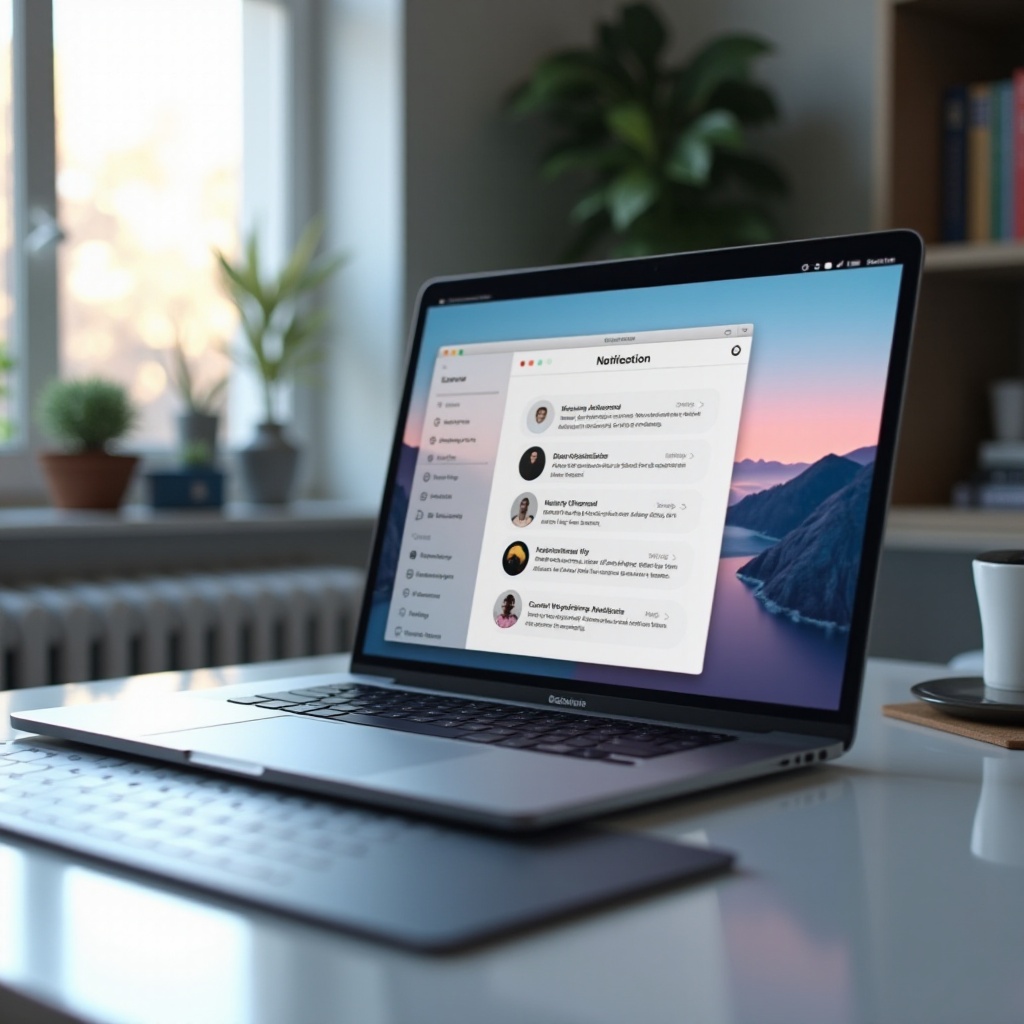
The Notification Center is your macOS command center for staying informed. It offers a streamlined view of all alerts and notifications from various apps, which keeps your desktop neat and organized. The Notification Center isn’t just about managing alerts; it offers widgets for quick updates on weather, stocks, or other info. This makes staying informed and organized easier, allowing you to focus on what truly matters during your workday.
How to Access the Notification Center on Your MacBook
Accessing the Notification Center can be done either through the menu bar, keyboard shortcuts, or system preferences, making it easy to fit into your workflow:
- Menu Bar Access:
-
Click the Notification Center icon located at the top-right corner of your screen.
-
Keyboard Shortcuts:
-
Swipe left with two fingers from the right edge of your trackpad.
-
System Preferences:
- Go to ‘System Preferences’ > ‘Notifications’ to manage settings.
Once you have access, customizing the Notification Center becomes essential to leverage its full potential effectively.
Customizing Your Notification Center
Tailoring the Notification Center ensures it meets your specific needs:
-
Adjusting Notification Settings:
Go to ‘System Preferences’ > ‘Notifications’ to alter settings per app, decide alert styles, and configure Do Not Disturb options to maintain focus during critical times. -
Personalizing Widgets and Layout:
Click ‘Edit Widgets’ at the bottom of the Notification Center, drag and arrange widgets, and add or remove them to suit your informational needs. -
Managing App-Specific Notifications:
Directly within each app, you can set preferences for what notifications to prioritize, ensuring only the most critical alerts break your focus.
With your Notification Center set up, the next step is to make efficient use of its capabilities for improved daily productivity.
Tips for Effective Usage
Utilize these strategies to maximize the Notification Center’s benefits:
-
Utilizing Do Not Disturb Mode:
You can activate Do Not Disturb during busy periods via the Notification Center or by holding the Option key and clicking the icon. This helps keep distractions at bay. -
Setting Priorities for Notifications:
Prioritize alerts from key apps like email or calendar to ensure you’re always updated on what’s most important. -
Integrating with Third-Party Apps:
Discover additional widgets in the App Store that can be added to the Notification Center, enhancing its functionality according to your needs.
Despite best efforts in setting up, you might run into occasional issues that need troubleshooting.
Troubleshooting Common Notification Center Issues
Addressing issues ensures seamless functionality:
-
Fixing Notification Delivery Problems:
Double-check if ‘Do Not Disturb’ is on or if app-specific settings block alerts. Also, ensure your MacBook is connected to a stable network. -
Reset and Refresh Notification Center:
Sometimes, a simple restart of your MacBook can solve persistent issues. Closing apps that hog resources might also help. -
Seeking Help from Apple’s Support:
Apple’s dedicated support sections and forums can provide comprehensive assistance. Reach out to them if you encounter issues beyond basic fixes.
With these tips, you are well-prepared to handle all Notification Center-related challenges you might face.
Conclusion
The Notification Center is a powerful tool for staying organized and productive. By understanding how to locate, use, and customize it effectively, you can ensure a more streamlined and efficient computing experience. Empower yourself with the tips and solutions covered here to keep your focus undisturbed and priorities clear.
Frequently Asked Questions
Where can I find Notification Center settings on my MacBook?
Notification Center settings are located in ‘System Preferences’ under ‘Notifications’, where you can fine-tune app alerts.
How can I turn off all notifications on my MacBook?
Enable ‘Do Not Disturb’ via the Notification Center to silence all alerts.
Why am I not receiving notifications on my MacBook?
Check if ‘Do Not Disturb’ is enabled or if notifications are turned off in app-specific settings.